<?xml version="1.0" encoding="UTF-8" ?>
<rdf:RDF
  xmlns:rdf="http://www.w3.org/1999/02/22-rdf-syntax-ns#"
  xmlns="http://purl.org/rss/1.0/"
  xmlns:dc="http://purl.org/dc/elements/1.1/"
  xmlns:content="http://purl.org/rss/1.0/modules/content/">

  <channel rdf:about="http://stylesslabannex.atgj.net/RSS/100/">
    <title>stylesslab-annex</title>
    <link>http://stylesslabannex.atgj.net/</link>
    <atom10:link xmlns:atom10="http://www.w3.org/2005/Atom" rel="self" type="application/rss+xml" href="http://stylesslabannex.atgj.net/RSS/" />
    <atom10:link xmlns:atom10="http://www.w3.org/2005/Atom" rel="hub" href="http://pubsubhubbub.appspot.com/" />
    <description>HTML JavaScript Tips and more...</description>
    <dc:language>ja</dc:language>
    <dc:date>2013-02-04T00:19:27+09:00</dc:date>
    <items>
    <rdf:Seq>
      <rdf:li rdf:resource="http://stylesslabannex.atgj.net/d3.js/d3.js%E3%81%A8topojson%E3%81%A7%E5%9C%B0%E5%9B%B3%E3%82%92%E8%A1%A8%E7%A4%BA%E3%81%97%E3%81%A6%E3%81%BF%E3%81%9F%20%E3%81%9D%E3%81%AE%EF%BC%94" />
      <rdf:li rdf:resource="http://stylesslabannex.atgj.net/d3.js/d3.js%E3%81%A8topojson%E3%81%A7%E5%9C%B0%E5%9B%B3%E3%82%92%E8%A1%A8%E7%A4%BA%E3%81%97%E3%81%A6%E3%81%BF%E3%81%9F%20%E3%81%9D%E3%81%AE%EF%BC%93" />
      <rdf:li rdf:resource="http://stylesslabannex.atgj.net/d3.js/d3.js%E3%81%A8topojson%E3%81%A7%E5%9C%B0%E5%9B%B3%E3%82%92%E8%A1%A8%E7%A4%BA%E3%81%97%E3%81%A6%E3%81%BF%E3%81%9F%20%E3%81%9D%E3%81%AE%EF%BC%92" />
      <rdf:li rdf:resource="http://stylesslabannex.atgj.net/d3.js/d3.js%E3%81%A8topojson%E3%81%A7%E5%9C%B0%E5%9B%B3%E3%82%92%E8%A1%A8%E7%A4%BA%E3%81%97%E3%81%A6%E3%81%BF%E3%81%9F" />
    </rdf:Seq>
    </items>
  </channel>

  <item rdf:about="http://stylesslabannex.atgj.net/d3.js/d3.js%E3%81%A8topojson%E3%81%A7%E5%9C%B0%E5%9B%B3%E3%82%92%E8%A1%A8%E7%A4%BA%E3%81%97%E3%81%A6%E3%81%BF%E3%81%9F%20%E3%81%9D%E3%81%AE%EF%BC%94">
    <link>http://stylesslabannex.atgj.net/d3.js/d3.js%E3%81%A8topojson%E3%81%A7%E5%9C%B0%E5%9B%B3%E3%82%92%E8%A1%A8%E7%A4%BA%E3%81%97%E3%81%A6%E3%81%BF%E3%81%9F%20%E3%81%9D%E3%81%AE%EF%BC%94</link>
    <title>D3.jsとTopoJSONで地図を表示してみた その４</title>
    <description>さて、前回はシミを作りましたね（＾＾；


今回はこれをもうちょっとだけ整形してみます。
projectionの所を修正して画像を拡大しましょう。
その際、centerを修正して、日本が中心に表示されるように
しないと、真っ白の画面になっちゃうので注意が必要です。

 &amp;amp;nb...</description>
    <content:encoded><![CDATA[さて、<a href="http://stylesslabannex.atgj.net/d3.js/d3.js%E3%81%A8topojson%E3%81%A7%E5%9C%B0%E5%9B%B3%E3%82%92%E8%A1%A8%E7%A4%BA%E3%81%97%E3%81%A6%E3%81%BF%E3%81%9F%20%E3%81%9D%E3%81%AE%EF%BC%93" target="_blank">前回</a>は<a href="http://stylesslab.client.jp/d3/step-2.html" target="_blank">シミ</a>を作りましたね（＾＾；

<br />
<br />

今回はこれをもうちょっとだけ整形してみます。<br />
projectionの所を修正して画像を拡大しましょう。<br />
その際、centerを修正して、日本が中心に表示されるように<br />
しないと、真っ白の画面になっちゃうので注意が必要です。<br />

<pre class="brush: javascript"> &nbsp; &nbsp; 
   var projection = d3.geo.albers()
         .center([-10, 35.4])
         .rotate([210, 0])
         .parallels([50, 60])
         .scale(480 * 5)
         .translate([width / 2, height / 2]);
&nbsp; &nbsp; </pre><br />

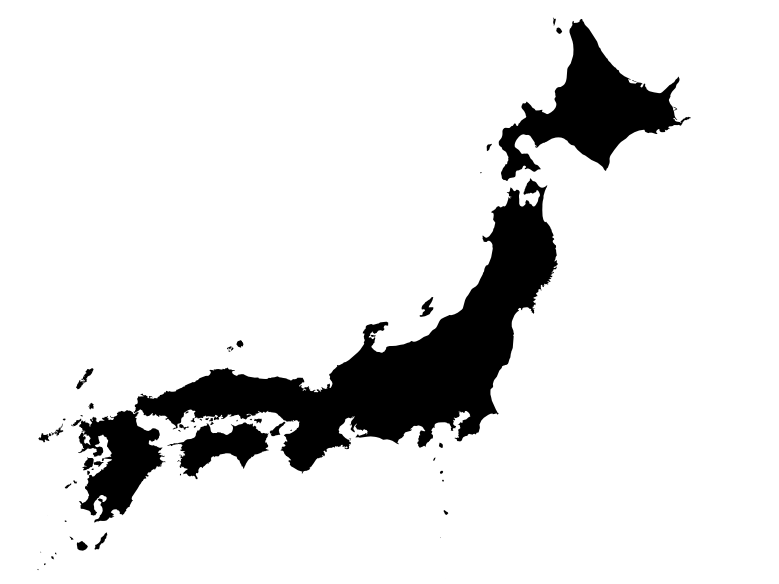
するとこんな感じに↓<br />
<a href="//stylesslabannex.atgj.net/File/130204-0001.png" target="_blank"><img src="//stylesslabannex.atgj.net/Img/1359905473/" alt="" /><br />
</a><a href="http://stylesslab.client.jp/d3/step-3.html" target="_blank" title="">step-3</a><br />
<br />
<br />
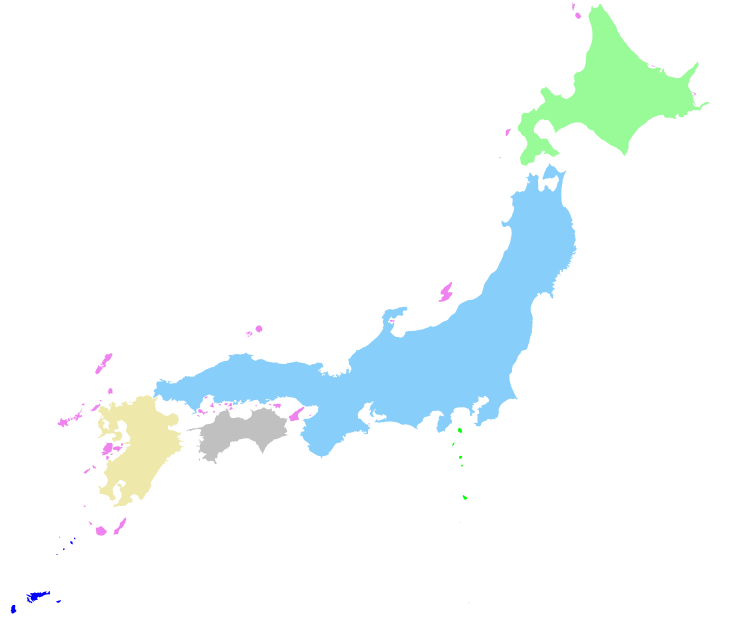
真っ黒だとちょっと寂しいので、軽く色づけをします。<br />
<a href="http://ja.d3js.node.ws/blocks/mike/map/" target="_blank" title="">先人たち</a>に習うと、スタイルシートで指定可能なようなので、<br />
これも真似てみましょう。<br />
<br />
<pre class="brush: javascript">   &nbsp; &nbsp; 
   .subunit.JPB { fill: #FFFF00; }	/* "name": "Bonin Is." */
   .subunit.JPH { fill: #87CEFA; }	/* "name": "Honshu"  */
   .subunit.JPI { fill: #00ff00; }	/* "name": "Izu-shoto" */
   .subunit.JPK { fill: #98FB98; }	/* "name": "Hokkaido" */
   .subunit.JPO { fill: #0000FF; }	/* "name": "Nansei-shoto" */
   .subunit.JPS { fill: #C0C0C0; }	/* "name": "Shikoku" */
   .subunit.JPV { fill: #FF0000; }	/* "name": "Volcano Is." */
   .subunit.JPX { fill: #EE82EE; }	/* "name": "Japan" (others)*/
   .subunit.JPY { fill: #EEE8AA; }	/* "name": "Kyushu" */
&nbsp; &nbsp; </pre><br />
このように、jpn.jsonファイルのgeometriesのtypeが<br />MultiPolygonのところで、id指定がされている箇所に<br />配色が可能です。<br />ほんとは47都道府県の色分けができたら良いんですが、<br />今回のポリゴンデータには含まれていないようなので、<br />とりあえずはここまでですかね。<br /><a href="//stylesslabannex.atgj.net/File/130204-0002.png" target="_blank"><img src="//stylesslabannex.atgj.net/Img/1359906760/" alt="" /></a><br /><a href="http://stylesslab.client.jp/d3/step-4.html" target="_blank" title="">step-4</a><br /><br />
<br /><br /><br /><br /><br />]]></content:encoded>
    <dc:subject>d3.js</dc:subject>
    <dc:date>2013-02-04T00:19:27+09:00</dc:date>
    <dc:creator>TakaP</dc:creator>
    <dc:publisher>NINJA BLOG</dc:publisher>
    <dc:rights>TakaP</dc:rights>
  </item>
  <item rdf:about="http://stylesslabannex.atgj.net/d3.js/d3.js%E3%81%A8topojson%E3%81%A7%E5%9C%B0%E5%9B%B3%E3%82%92%E8%A1%A8%E7%A4%BA%E3%81%97%E3%81%A6%E3%81%BF%E3%81%9F%20%E3%81%9D%E3%81%AE%EF%BC%93">
    <link>http://stylesslabannex.atgj.net/d3.js/d3.js%E3%81%A8topojson%E3%81%A7%E5%9C%B0%E5%9B%B3%E3%82%92%E8%A1%A8%E7%A4%BA%E3%81%97%E3%81%A6%E3%81%BF%E3%81%9F%20%E3%81%9D%E3%81%AE%EF%BC%93</link>
    <title>D3.jsとTopoJSONで地図を表示してみた その３</title>
    <description>前回、HTMLに表示する日本の地図データを含む
TopoJSONファイルが出来上がりました。今日はこれを実際にd3.jsを使ってブラウザ表示させてみます。
今回も先人たちに習いましょう。


step-1のhtmlファイルはTopoJSONを読み込むだけの確認なので、すっとばします。
s...</description>
    <content:encoded><![CDATA[<a href="http://stylesslabannex.atgj.net/d3.js/d3.js%E3%81%A8topojson%E3%81%A7%E5%9C%B0%E5%9B%B3%E3%82%92%E8%A1%A8%E7%A4%BA%E3%81%97%E3%81%A6%E3%81%BF%E3%81%9F%20%E3%81%9D%E3%81%AE%EF%BC%92" target="_blank">前回</a>、HTMLに表示する日本の地図データを含む<br />
TopoJSONファイルが出来上がりました。<br /><br />今日はこれを実際にd3.jsを使ってブラウザ表示させてみます。<br />
今回も<a href="http://ja.d3js.node.ws/blocks/mike/map/#loading-data" target="_blank">先人たち</a>に習いましょう。<br />


<br />step-1のhtmlファイルはTopoJSONを読み込むだけの確認なので、すっとばします。
<br />step-2のhtmlファイルを参考にして、
<br />ちょろっと修正させてもらいましょう。


<pre class="brush: javascript">   d3.json("jpn.json", function(error, jpn) {
      svg.append("path")
            .datum(topojson.object(jpn, jpn.objects.subunits_jpn))
            .attr("d", path);
   });  
</pre><br />

<br />
１行目は前回に作成したjpn.jsonを指定します。
<br />functionの第２引数もjpnにしました。
<br />３行目のdatumの第２引数は前回ポリゴンデータのGeoJSONを作る際、<br />
subunits_jpnという名前にしていたので、<br />忘れずに subunits→subunits_jpnに
変更しておきます。

<br /><br />さぁ、htmlファイルをブラウザで表示してみましょう。<br /><br />あ。ちゃんと、apacheなり、IISなり、<br />WEBサイトとしてローカルに配置して参照しましょう。<br /><br />ローカルファイルとしてブラウザ表示すると、<br />クロスドメインアクセス制限により、正しく表示できません。<br />＃macのsafariだとローカルファイルとしても表示できましたが。。<br /><br />さて、前置きが長くなりましたが、表示するとこんな感じです↓<br /><br /><a href="//stylesslabannex.atgj.net/File/130120-0001.png" target="_blank"><img src="//stylesslabannex.atgj.net/Img/1358612567/" alt="" /><br /></a><a href="http://stylesslab.client.jp/d3/step-2.html" target="blank" title="">step-2.html</a><br /><br /><br />確かにシミですね。。。<br /><br /><br />
次回はもう少し整形してみましょう。]]></content:encoded>
    <dc:subject>d3.js</dc:subject>
    <dc:date>2013-01-27T23:38:52+09:00</dc:date>
    <dc:creator>TakaP</dc:creator>
    <dc:publisher>NINJA BLOG</dc:publisher>
    <dc:rights>TakaP</dc:rights>
  </item>
  <item rdf:about="http://stylesslabannex.atgj.net/d3.js/d3.js%E3%81%A8topojson%E3%81%A7%E5%9C%B0%E5%9B%B3%E3%82%92%E8%A1%A8%E7%A4%BA%E3%81%97%E3%81%A6%E3%81%BF%E3%81%9F%20%E3%81%9D%E3%81%AE%EF%BC%92">
    <link>http://stylesslabannex.atgj.net/d3.js/d3.js%E3%81%A8topojson%E3%81%A7%E5%9C%B0%E5%9B%B3%E3%82%92%E8%A1%A8%E7%A4%BA%E3%81%97%E3%81%A6%E3%81%BF%E3%81%9F%20%E3%81%9D%E3%81%AE%EF%BC%92</link>
    <title>D3.jsとTopoJSONで地図を表示してみた その２</title>
    <description>さて。前回、TopoJSONファイルを作るためのツールが揃いました。

今回は先人たちの轍をたどりながら、TopoJSONデータを作成してみます。
とは言え、
そのまま真似ると面白くないので、日本の地図データを作成する事にします。


なお、引き続き、使用しているのはubuntuです。...</description>
    <content:encoded><![CDATA[さて。<a href="http://stylesslabannex.atgj.net/d3.js/d3.js%E3%81%A8topojson%E3%81%A7%E5%9C%B0%E5%9B%B3%E3%82%92%E8%A1%A8%E7%A4%BA%E3%81%97%E3%81%A6%E3%81%BF%E3%81%9F" target="blank" title="">前回、TopoJSONファイルを作るためのツールが揃いました。</a><br />
<br />
今回は<a href="http://ja.d3js.node.ws/blocks/mike/map/" target="blank" title="">先人たちの轍をたどりながら</a>、TopoJSONデータを作成してみます。<br />
とは言え、<br />
そのまま真似ると面白くないので、日本の地図データを作成する事にします。<br />
<br />
<br />
なお、引き続き、使用しているのはubuntuです。<br />
<br />
まずは地図データのダウンロードです。<br />
<br />
Natural Earthからデータを頂くとしましょう。<br />
<br />
<br />
$ wget&nbsp;http://goo.gl/kOniZ<br />
<br />
$ wget&nbsp;http://goo.gl/0Jsqx<br />
<br />
前者は国のポリゴンデータ、後者は居住地域の位置と名前だそうです。<br />
<br />
google url shorterを使っているので、ダウンロードしたzipファイルが<br />
kOniZと0Jsqxになってますが、気にしない事にします。<br />
<br />
<br />
それぞれ、展開後のファイルを格納するためのディレクトリを作成します。<br />
ここは分かりやすいディレクトリ名にしましょう。<br />
<br />
$ mkdir polygon_data<br />
$ mkdir place_data<br />
<br />
ディレクトリを作ったら、それぞれ展開します。<br />
<br />
$&nbsp;unzip kOniZ -d polygon_data<br />
$ unzip&nbsp;0Jsqx -d place_data<br />
<br />
<br />
さて、ここからがインストールしたツールの出番です。<br />
先人たちはイギリスの地図データを含むTopoJSONを<br />
作成していますが、ここでは日本の地図を作成する事にします。<br />
<br />
$ ogr2ogr \<br />
-f GeoJSON \<br />
-where "adm0_a3 IN ('JPN')" \<br />
subunits_jpn.json \<br />
./polygon_data/ne_10m_admin_0_map_subunits.shp<br />
<br />
<br />
where句の所ですが、<br />
「a3 は ISO 3166-1 alpha-3 の定める国コード」<br />
とあるので、JPNを指定します。<br />
出力するファイル名も subunits_jpn.json としました。<br />
<br />
<br />
subunits_jpn.json は出力されたでしょうか？？<br />
<br />
<br />
<br />
さて、お次ぎは居住地データです。<br />
<br />
$ ogr2ogr \<br />
-f GeoJSON \<br />
-where "iso_a2 = 'JP' AND SCALERANK &lt; 8" \<br />
places_jpn.json \<br />
./place_data/ne_10m_populated_places.shp<br />
<br />
<br />
ここではwhere句に「<a href="http://en.wikipedia.org/wiki/ISO_3166-1_alpha-2" target="_blank">ISO 3166-1 alpha-2</a>」の国コード「JP」を指定し、<br />
SCALERANKは8未満のままとします。<br />
出力するファイル名も places_jpn.json としました。<br />
<br />
<br />
<br />
では、出来上がった２つのGeoJSONファイルを結合して<br />
日本の地図データを含むTopoJSONファイルを作成します。<br />
<br />
$ topojson \<br />
--id-property su_a3 \<br />
-p NAME=name \<br />
-p name \<br />
-o jpn.json \<br />
subunits_jpn.json \<br />
places_jpn.json<br />
<br />
<br />
これで、subunits_jpn.json と places_jpn.json を結合し、<br />
jpn.jsonというTopoJSONファイルが作成されました。<br />
<br />
<br />
今回はすんなりできましたね。<br />
<br />
次回は、このデータをHTMLで表示させてみる事にします。<br />
<br />
]]></content:encoded>
    <dc:subject>d3.js</dc:subject>
    <dc:date>2013-01-19T22:22:58+09:00</dc:date>
    <dc:creator>TakaP</dc:creator>
    <dc:publisher>NINJA BLOG</dc:publisher>
    <dc:rights>TakaP</dc:rights>
  </item>
  <item rdf:about="http://stylesslabannex.atgj.net/d3.js/d3.js%E3%81%A8topojson%E3%81%A7%E5%9C%B0%E5%9B%B3%E3%82%92%E8%A1%A8%E7%A4%BA%E3%81%97%E3%81%A6%E3%81%BF%E3%81%9F">
    <link>http://stylesslabannex.atgj.net/d3.js/d3.js%E3%81%A8topojson%E3%81%A7%E5%9C%B0%E5%9B%B3%E3%82%92%E8%A1%A8%E7%A4%BA%E3%81%97%E3%81%A6%E3%81%BF%E3%81%9F</link>
    <title>D3.jsとTopoJSONで地図を表示してみた その１</title>
    <description>jQueryを使用しているサイトが55%を超え、JavaScriptがWebを席巻している昨今、今更jQueryを取り上げても面白くなぁと思っていたら、d3.jsというライブラリを発見。
なんか凄そうなので、先人たちの轍をたどりながら、サンプルを作成してみた。


TOOLたちのインストール...</description>
    <content:encoded><![CDATA[<a href="http://www.publickey1.jp/blog/13/jqueryweb55w3techs.html" target="blank" title="">jQueryを使用しているサイトが55%</a>を超え、JavaScriptがWebを席巻している昨今、今更jQueryを取り上げても面白くなぁと思っていたら、<a href="http://d3js.org/" target="blank" title="">d3.js</a>というライブラリを発見。<br />
なんか凄そうなので、<a href="http://ja.d3js.node.ws/blocks/mike/map/" target="blank" title="">先人たちの轍</a>をたどりながら、サンプルを作成してみた。<br />
<br />
<br />
<b>TOOLたちのインストール</b><br />
あんまり使わないかもしれない(?)ツールをアレやコレやとインストールしまくって自慢のMacBookが雑多になるのを避けるため、VMWare上にubuntuをインストールして、TOOLたちはそこへインストールする事にしました。<br />
<br />
【その１】<br />
PROJとGDALのインストール<br />
PROJ・・・緯度経度⇔投影座標値との相互変換を行うライブラリ<br />
GDAL・・・地理空間データ抽出ライブラリ<br />
<br />
幸いな事にubuntuにはapt-getが標準でついてるので、これを使わない手はありません。以下のコマンドでさくっとやっつけましょう。<br />
<br />

$ sudo apt-get update<br/>
$ sudo apt-get install proj<br/>
$ sudo apt-get install gdal-bin<br/>


<br />
【その２】<br />
node.js関連のインストール<br />
$&nbsp;sudo apt-get install nodejs<br />
$&nbsp;sudo apt-get install npm<br />
<br />
apt-getって素晴らしい(？)<br />
※(？)が付いた理由は後ほど。<br />
<br />
【その３】<br />
TopoJSONのインストール<br />
<a href="https://github.com/mbostock/topojson/wiki/JP-Home" target="blank" title="">TopoJSON</a>という何やら聞き慣れないものをインストールします。<br />
どうやら<a href="http://s.kitazaki.name/docs/geojson-spec-ja.html" target="blank" title="">GeoJSON</a>の拡張フォーマットらしいです。<br />
<br />
<div>	$ npm install -g topojson</div><div>	npm ERR! couldn't read package.json in .</div><div>	npm ERR! Error installing .</div><div>	npm ERR! Error: ENOENT, No such file or directory 'package.json'</div><div>	npm ERR! Report this *entire* log at &lt;http://github.com/isaacs/npm/issues&gt;</div><div>	npm ERR! or email it to &lt;npm-@googlegroups.com&gt;</div><div>	npm ERR! Just tweeting a tiny part of the error will not be helpful.</div><div>	npm not ok</div><div>	<br />
	&nbsp;</div>おや？？<br />
<br />
<div>	$ npm -v</div><div>	0.2.19</div><div>	<br />
	どうやらnpmのバージョンが古いようです。<br />
	<div>		$ node -v</div>	<div>		v0.4.9</div>	<div>		<br />
		node.jsも古め。。<br />
		apt-get upgradeしても変わらなかったので、手動インストールすることに。<br />
		&nbsp;</div></div><br />
【その４】<br />
node.jsの再インストール<br />
まずは、先ほどインストールしたnode.jsのアンインストールから。<br />
<br />
$ sudo apt-get autoremove nodejs<br />
<br />
<div>	$ sudo apt-get autoremove npm</div><div>	パッケージリストを読み込んでいます... 完了</div><div>	依存関係ツリーを作成しています &nbsp; &nbsp; &nbsp; &nbsp; &nbsp; &nbsp; &nbsp; &nbsp;</div><div>	状態情報を読み取っています... 完了</div><div>	パッケージ npm はインストールされていないため、削除はできません</div><div>	<br />
	<br />
	あら。nodejsと一緒に削除されてたようですね。<br />
	<br />
	<br />
	では、改めて手動インストールを実施します。<br />
	お行儀よく、Downloadsディレクトリに移動してからwgetしましょう。</div>$ cd ~/Downloads/<br />
<div>	<br />
	$ wget http://nodejs.org/dist/node-latest.tar.gz</div><div>	&nbsp;</div><br />
node.jsのコンパイルには以下のライブラリが必要なので、<br />
事前にインストールしておきます。<br />
・build-essential<br />
・libssl-dev<br />
<br />
$ sudo apt-get install build-essential<br />
<br />
$ sudo apt-get install libssl-dev<br />
<br />
<br />
ダウンロードしたnode.jsを解凍します。<br />
<div>	$ tar xvfz node-latest.tar.gz&nbsp;</div><div>	<br />
	展開されたディレクトリへ移動します。<br />
	<div>		$ cd node-v0.8.17<br />
		<br />
		configureを実行します。<br />
		$ ./configure<br />
		&nbsp;</div></div>make &amp; make install<br />
<br />
$ make<br />
気長に待ちましょう。<br />
<br />$ sudo make install<br />
<br />
インストールが完了したら、node.jsのバージョンを確認してみましょう。<br />
<br />
<div>$&nbsp;node&nbsp;-v</div><div>bash: /usr/bin/node: そのようなファイルやディレクトリはありません</div><br />
そんな事言われてもめげずに、シンボリックリンクでも作りましょう。<br />
<div>$ sudo ln -s /usr/local/bin/node /usr/bin/node</div>$ sudo ln -s /usr/local/bin/npm /usr/bin/npm<br />
<br />
<br />
さぁ。もう一度、バージョン確認です。<br />
$ node -v<div>v0.8.17</div><div><br />
</div><div>$ npm -v</div><div>1.2.0</div><div><br />
<br />
素晴らしい。<br />
<br />
<br />
【その５】</div>TopoJSONのインストールに再チャレンジします。<br />
<div>$ sudo npm install -g topojson</div><br />
<br />
今度はちゃんとインストールできました。<br />
<br />
【その６】<br />
目的のツールが実行できるか確認します。<br />
そうです。思い出して下さい。<br />
ここまでの道のりは、以下のコマンドが実行したいがためだけに歩いてきた道なのです。<br />
<br />
<div>$ which ogr2ogr</div><div>/usr/bin/ogr2ogr</div><div><br />
$ which topojson&nbsp;</div><div>/usr/local/bin/topojson</div><div><br />
</div><br />目的のツールがインストールされました。<br /><br />思いのほか、長くなったので、続きはまた今度。<br />
<br />
<br />
<br /><br />
]]></content:encoded>
    <dc:subject>d3.js</dc:subject>
    <dc:date>2013-01-13T23:37:11+09:00</dc:date>
    <dc:creator>TakaP</dc:creator>
    <dc:publisher>NINJA BLOG</dc:publisher>
    <dc:rights>TakaP</dc:rights>
  </item>
</rdf:RDF>